

If you are writing a social media caption, searching online or entering a tag in a document, you may need the hash symbol (#). The shortcut is easy once you know which keyboard layout your Mac is using. The answer to how to do a hashtag on Mac is not identical for every MacBook: a US layout normally uses Shift + 3, while a British layout normally uses Option + 3.
This guide explains both shortcuts, how to check your active input source, what to do if the wrong symbol appears, and how to insert the character without memorising a key combination.
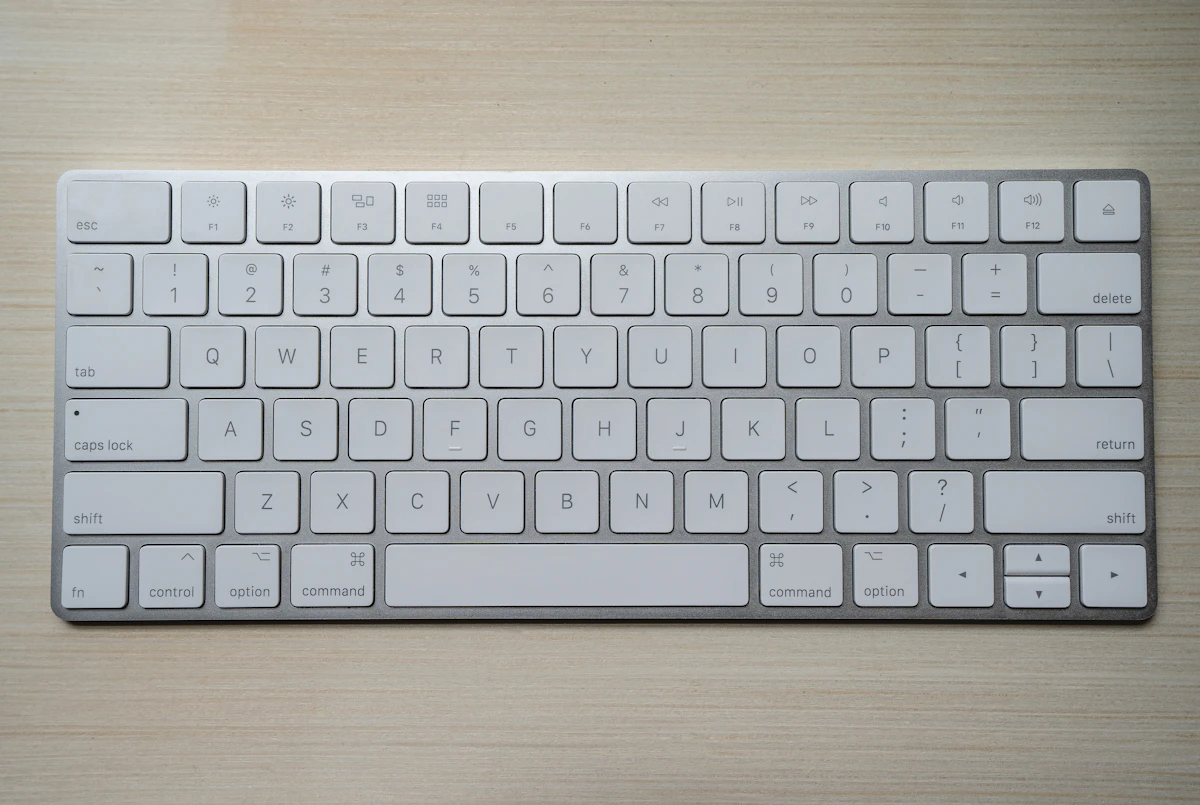
The Quick Answer: Use the Shortcut for Your Keyboard Layout
On a Mac with a US English keyboard layout, hold Shift and press 3 on the number row. The # symbol should appear. On a Mac using the British English layout, hold Option (also labelled Alt on some keyboards) and press 3. The same physical key produces different characters because the selected layout assigns the symbols differently.
Do not assume the layout from the country where the Mac was purchased. A Mac bought in one country can be configured to use another input source. The active macOS input source, rather than the physical key label alone, determines what appears when you press a combination.
How to Type a Hashtag on a US Mac Keyboard
For a standard US layout, follow these steps:
- Click inside the text field where you want the symbol.
- Hold down the Shift key.
- Press the number 3 key in the top number row.
- Release both keys and check that # appears.
This shortcut works in common apps such as Safari, Notes, Mail, Pages, Word, messaging apps and social media websites. You do not need to open a special symbol menu or install an extra application.
Why Shift + 3 may not work on a UK layout
On a British Mac keyboard, Shift + 3 normally types the pound sterling symbol (£). That is expected behaviour, not necessarily a keyboard fault. Use Option + 3 for the hash symbol instead. If you are switching between a US and UK keyboard, remember that the two shortcuts are effectively reversed for these characters.
How to Type a Hashtag on a UK Mac Keyboard
On a British English layout, press Option + 3. The Option key sits beside Command and may also be marked Alt. Hold Option, tap 3, and release. You should see # at the cursor position. This method applies to many MacBook Air, MacBook Pro, iMac and external Apple keyboard configurations when the British input source is active.
If you use a third-party PC keyboard with a Mac, the printed key labels may not match macOS behaviour. The operating system interprets the key according to the selected input source and keyboard type. Test the shortcut in a plain text field before assuming the keyboard is defective.
Check Which Keyboard Layout Your Mac Is Using
If you are unsure whether macOS is using US, British or another layout, check the input source in System Settings. On recent macOS versions, open System Settings, choose Keyboard, and look for the Text Input or Input Sources controls. Select Edit if necessary to see the layouts that have been added. The exact wording can vary slightly by macOS version.
Make sure the selected source matches the physical keyboard you are using. If you regularly type in more than one language, you may have several input sources installed. The Input menu in the menu bar can show which one is currently active and lets you switch when required.
Use Keyboard Viewer to see the symbol positions
Keyboard Viewer is useful when you cannot remember where a symbol is located. Enable the input menu in Keyboard settings, open the menu in the menu bar, and choose Show Keyboard Viewer. Hold Shift or Option while the viewer is open to see which characters are assigned to each key. This is particularly helpful on international layouts where the hash symbol may be somewhere other than the number 3 key.
Insert the Hash Symbol Without a Keyboard Shortcut
You can insert # through macOS Character Viewer if you do not know the correct combination or if you are using a less common keyboard layout. Click where the character should go, open the Edit menu in a supported app and choose Emoji & Symbols. Search for “number sign” or “hash”, then double-click the symbol to insert it.
Depending on your macOS settings and keyboard, you may also be able to open the Character Viewer using the Globe or Fn key combination. If that shortcut is different on your Mac, use the Edit menu instead. Once inserted, the character can be copied and pasted into another app or document.
Why Is My Mac Typing £ Instead of #?
The most common reason is that the active input source is British English. In that layout, Shift + 3 is assigned to £ and Option + 3 is assigned to #. Check the input source before changing system settings or assuming that a key is broken.
Another possibility is that an external keyboard is being interpreted using a different layout from the one printed on its keys. Disconnect and reconnect it, check the keyboard setup assistant if macOS offers it, and test the keys in TextEdit or Notes. Avoid changing several settings at once because that can make it harder to identify the cause.
How to Use Hashtags Correctly After Typing #
A hashtag is the hash symbol followed by a word or phrase without spaces. For example, #MacTips and #HomeOffice are valid examples of the format. If a phrase contains several words, write them together or separate them with underscores where the platform supports that style. Spaces usually end a hashtag, so #Mac Keyboard may be interpreted as one tag followed by an ordinary word.
Use tags that genuinely describe the post. A long list of unrelated trending terms can make a caption look cluttered and may reduce its usefulness to readers. Check the current rules of the social platform you are using because hashtag discovery and display behaviour can change over time.
Common Mac Hashtag Problems and Fixes
The shortcut types the wrong character
Check the active input source and use the shortcut for that layout. British layout: Option + 3. US layout: Shift + 3.
The Option key appears to do nothing
Confirm that you are pressing the Option key on the same keyboard that is receiving the input. If you use a Windows-style external keyboard, the key mapping may differ. Test with Keyboard Viewer or Character Viewer.
The symbol appears in the wrong app or field
Click directly inside the text field before pressing the shortcut. Some apps use keyboard combinations for their own commands, so test the key in Notes or TextEdit to separate an app-specific issue from a macOS layout issue.
You cannot find the hash symbol on the printed keys
The symbol may be an alternate character that is not printed on the physical key. Use Keyboard Viewer to reveal the available characters for Shift and Option, or insert the symbol through Character Viewer.

Tips for People Who Switch Between Multiple Keyboards
If you alternate between a built-in MacBook keyboard, an external Apple keyboard and a Windows-style keyboard, keep a note of the active input source for each setup. A shortcut that works on one device may produce another character on a second device even when both are connected to the same Mac. This is especially common in shared offices, hot desks and home workspaces where different keyboards are used throughout the day.
When troubleshooting, test the symbol in a basic text editor first. If the shortcut works there but not in one website or application, the issue may be an app shortcut, browser extension or focused control rather than the keyboard layout. If the wrong character appears everywhere, inspect the input source and Keyboard Viewer before changing more advanced settings.
When to Change Your Mac’s Input Source
Changing the input source makes sense when the layout selected in macOS does not match the keyboard you physically use most often. It is not necessary to switch layouts simply to type one hashtag. If you only need # occasionally, use the correct Option or Shift combination or Character Viewer. If you regularly type punctuation and symbols from another language layout, adding that input source can make everyday typing more predictable.
After changing an input source, test several familiar characters, not just the hash. Check quotation marks, @, £ and other punctuation you use frequently. This helps confirm that the selected layout is appropriate for your keyboard and prevents one fixed symbol from creating new problems elsewhere.
Typing Hashtags in Documents, Spreadsheets and Code
The same character can be used in ordinary writing, spreadsheets, filenames and technical work, but its meaning depends on the application. In a social post, it may group a topic. In a spreadsheet or document, it is simply punctuation unless a feature assigns it a special role. In programming, the hash character can have a specific syntax meaning, so check the language or application rules before inserting it into a command or code file.
If you are copying a hashtag from a website, make sure you select the symbol itself and not a nearby space or punctuation mark. When entering several tags, leave a space between complete hashtags so readers can distinguish them. These small habits make the character easier to use consistently across different apps.
For a quick reference, remember the pair: US uses Shift + 3 for #, while UK uses Option + 3 for #. If you share a Mac with other people or use more than one keyboard, verify the active input source before changing settings. The keyboard viewer is the easiest way to confirm a symbol assignment without guessing.
For a second explanation of the regional shortcut difference, see Macworld’s guide to special characters on Mac. Apple’s own input source guidance explains how to switch keyboard layouts.
Frequently Asked Questions
What is the hashtag shortcut on a Mac?
Use Shift + 3 on a US English layout and Option + 3 on a British English layout. The active input source determines which shortcut works.
Why does Shift + 3 type a pound sign on my Mac?
Your Mac is probably using the British English keyboard layout, where Shift + 3 produces £. Press Option + 3 to type #.
Is Option the same as Alt on a Mac?
Yes. The Option key is sometimes labelled Alt, particularly on certain keyboards. It performs the same modifier role for the UK hashtag shortcut.
Can I copy and paste the hashtag symbol?
Yes. Copy this character: #. You can paste it into a caption, document, browser field or message.
How can I find symbols on other Mac keyboard layouts?
Use Keyboard Viewer to inspect the characters assigned to each key, or open Character Viewer and search for the symbol by name.
Conclusion
Typing a hashtag on a Mac is straightforward once you identify the active keyboard layout. Press Shift + 3 on a US layout or Option + 3 on a British layout. If neither produces the expected character, check Input Sources, use Keyboard Viewer, or insert the number sign through Character Viewer. These checks solve most hashtag keyboard problems without changing your Mac unnecessarily.

Lois Snyder is a versatile writer with experience across multiple domains. She crafts engaging and informative content, delivering valuable insights and captivating readers with her expertise and passion for diverse topics.